
Overview
The SuperOps integration connects DMARC Report to your SuperOps MSP platform so email-authentication work lives alongside the rest of your client management:
- Self-closing tickets — DMARC, SPF, DKIM, BIMI, and deliverability alerts open a SuperOps ticket and close it automatically when the condition clears.
- DNS onboarding tickets — adding a domain opens a ticket containing the exact record the client must publish; it auto-closes once the record is detected.
- Client sync — pull your SuperOps clients in as monitored DMARC Report teams with one click.
- Billing sync — monitored domains and power-ups sync to SuperOps as client contracts, priced with your own markup.
- Automatic routing — a one-time team→customer mapping files every alert, ticket, and contract under the right SuperOps client.
One difference from HaloPSA: SuperOps does not offer outbound webhooks, so new clients aren’t pushed to DMARC Report automatically. Instead you click Sync now after onboarding clients in SuperOps — it’s a one-click pull that only adds clients you don’t already have.
Before you begin
- A DMARC Report account with access to the Integrations page (under Alerts).
- Administrator access to your SuperOps instance.
Step 1 — Get your SuperOps API token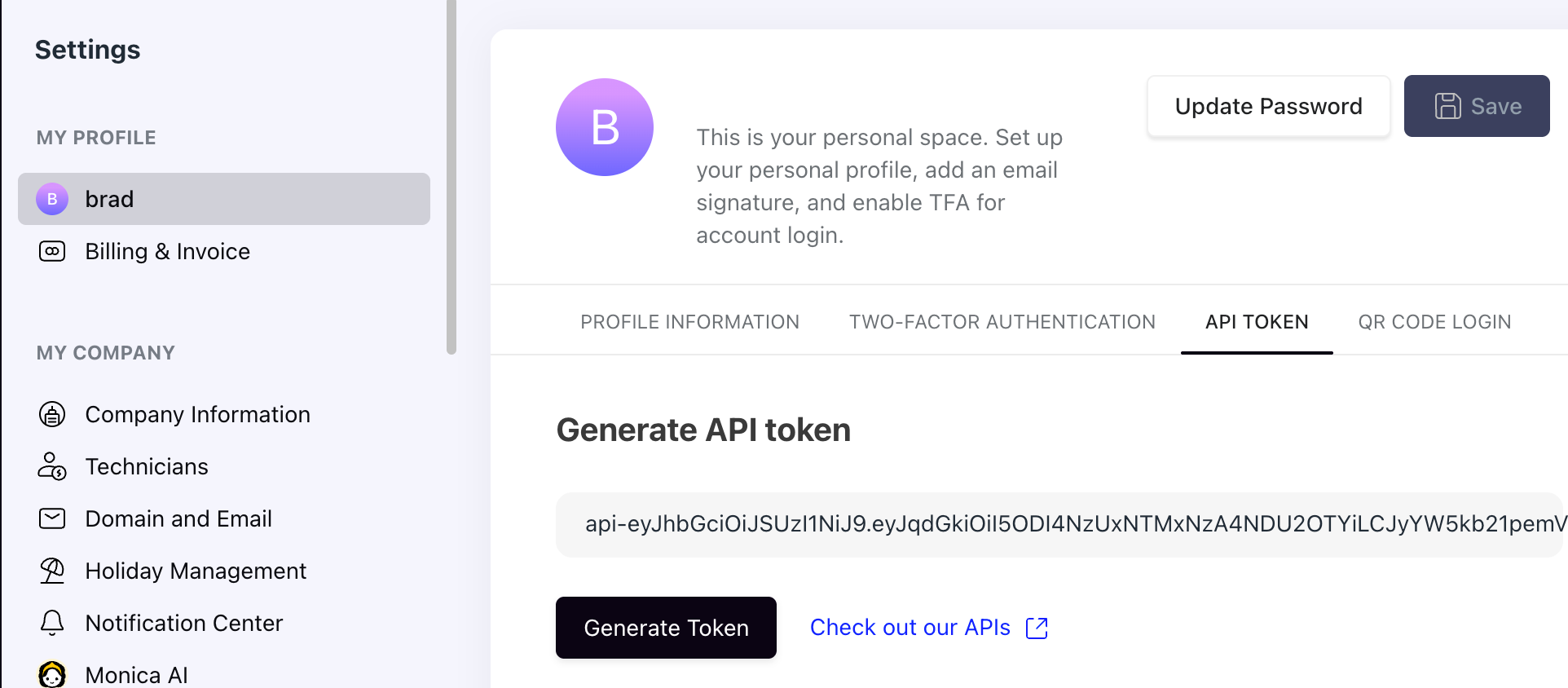
- In SuperOps, go to Settings → API Tokens and create a token.
- Note your subdomain — the first part of your SuperOps URL (e.g.
yourcompany.superops.ai→yourcompany). - Note your data center: US (
api.superops.ai) or EU (euapi.superops.ai).
Step 2 — Add the integration in DMARC Report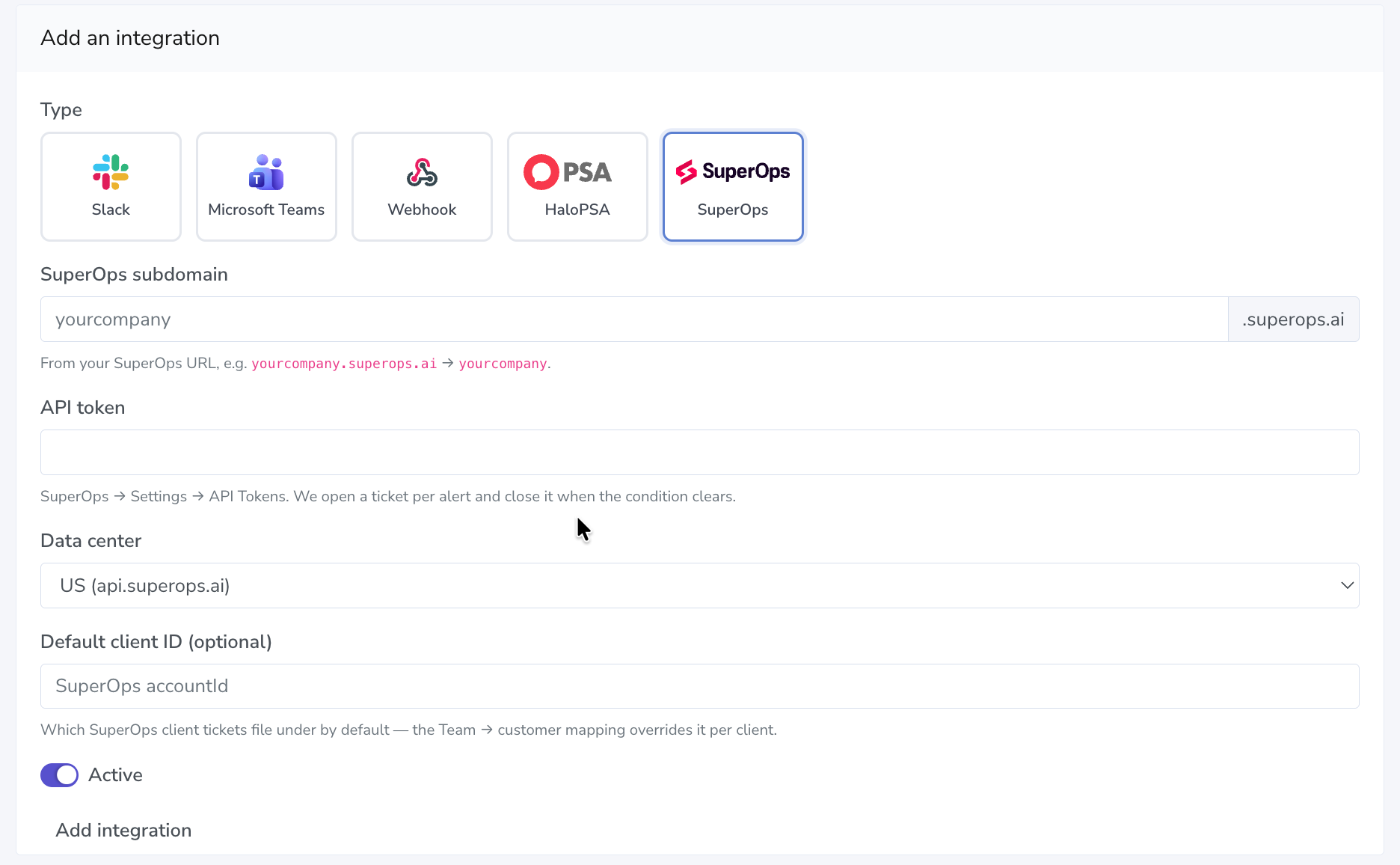
- In DMARC Report, open Alerts → Integrations and click Add integration.
- Choose SuperOps.
- Enter your subdomain, API token, and data center. Optionally set a Default client ID (SuperOps accountId) to file unmapped tickets under.
- Save. Use Send test to confirm the connection works.
Step 3 — Map teams to SuperOps clients and Sync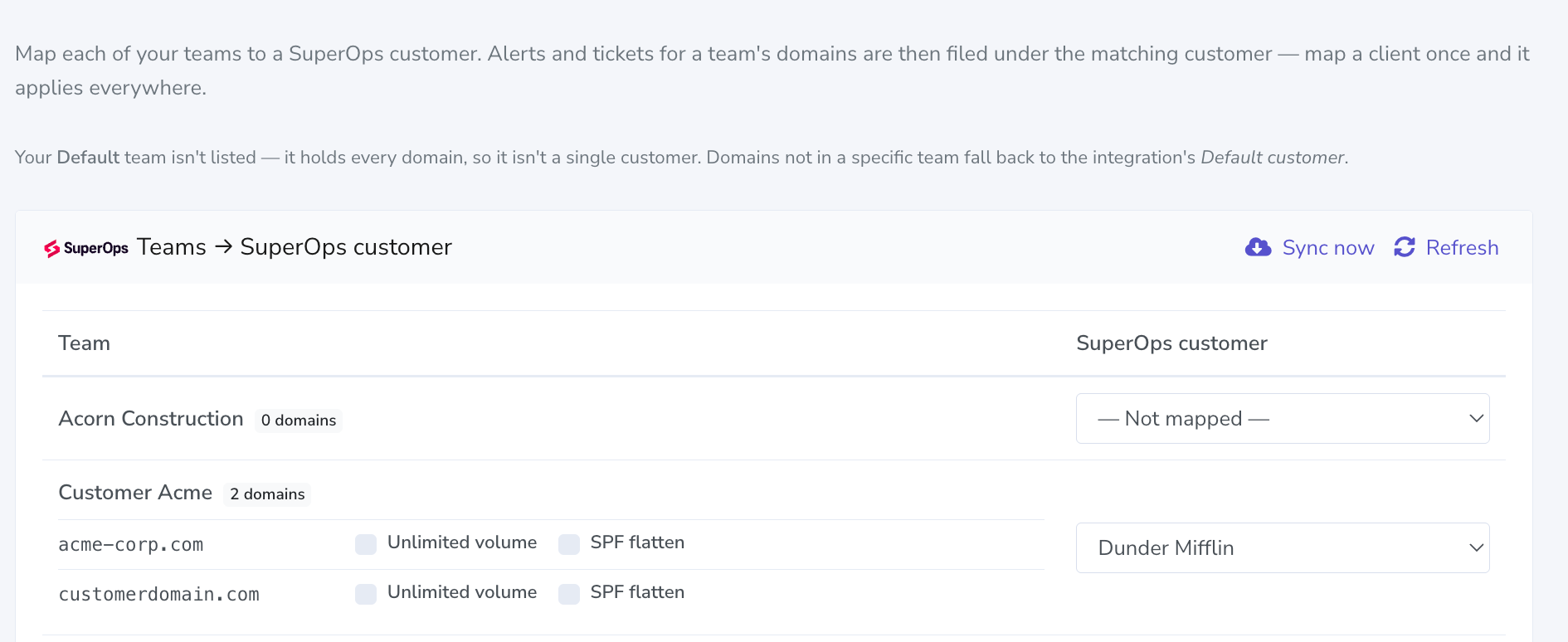
Each DMARC Report team maps to one SuperOps client, so alerts and tickets file under the right client everywhere.
- On the SuperOps integration, click Map customers.
- Click Sync now to pull in your SuperOps clients — a DMARC Report team is created for each one. This is idempotent: re-run it any time and only new clients are added.
- For any team you created yourself, pick its matching SuperOps client and click Save mapping.
Remember: because SuperOps can’t notify DMARC Report of new clients, click Sync now whenever you onboard clients in SuperOps.
Step 4 (optional) — Enable billing sync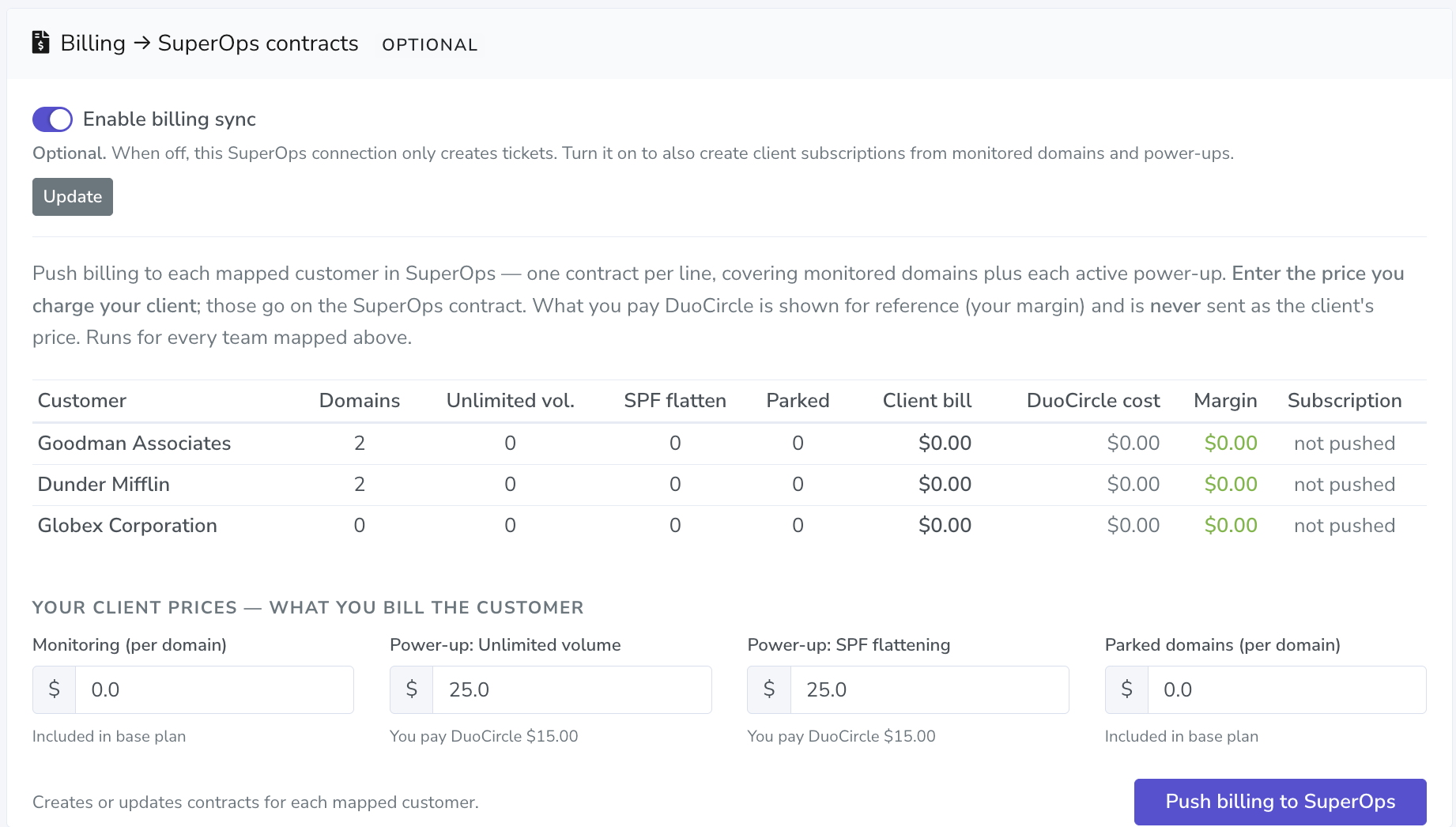
Push monitored domains and power-ups to SuperOps as a contract per client.
- On the Map customers page, turn on Enable billing sync.
- Under Your client prices, enter what you charge your client for monitoring and each power-up (Unlimited volume, SPF flattening). The preview shows each client’s bill, your DuoCircle cost, and your margin.
- Click Push billing to SuperOps. A recurring contract is created or updated for every mapped client; removed items are zeroed automatically.
What you pay DuoCircle is shown for reference only and is never sent as the client’s price.
What the tickets look like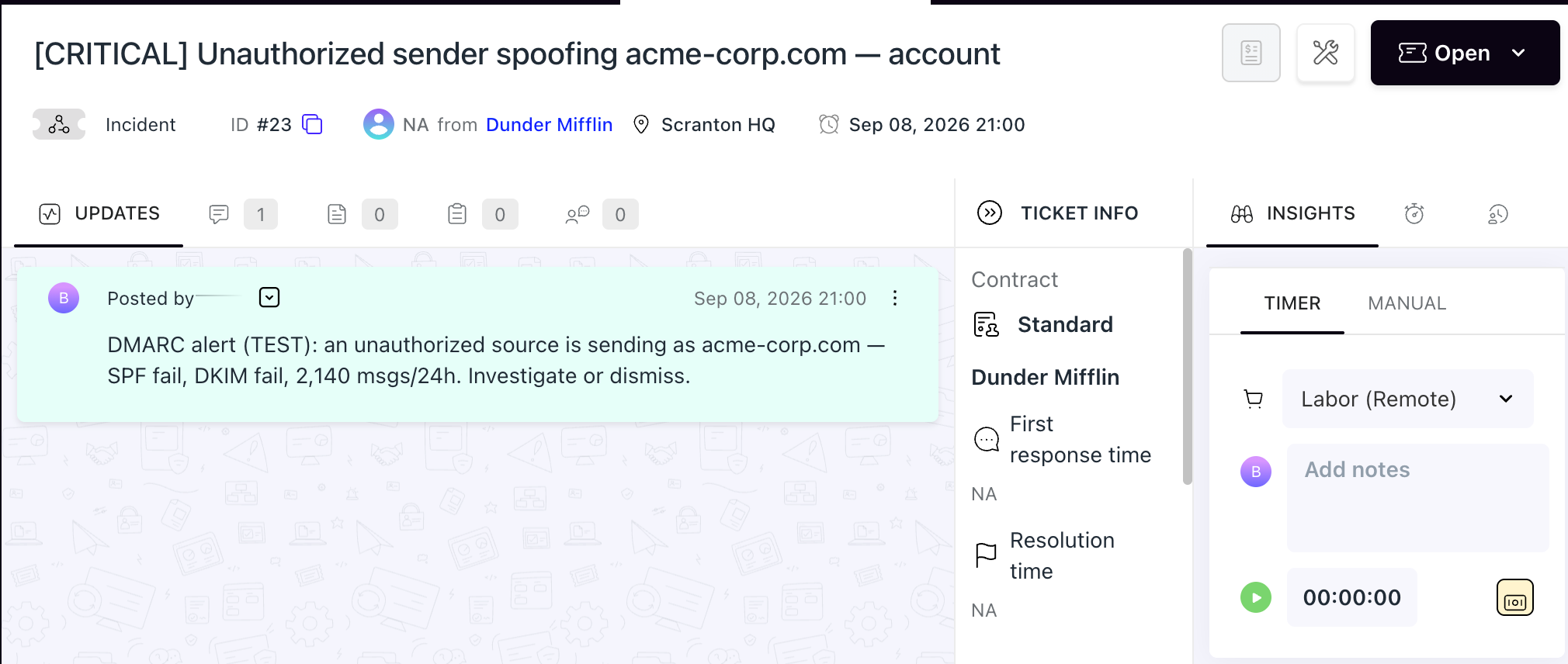
- Alert tickets open at the alert’s severity and close automatically when the underlying issue is resolved — no manual cleanup.
- DNS Setup Required tickets carry the exact DNS record the client must publish and close automatically once DMARC Report detects it live.
Troubleshooting
- “Couldn’t deliver a test” — re-check the subdomain, API token, and data center (US vs EU).
- No clients in the mapping list — confirm the API token is valid, then click Refresh or Sync now.
- A newly-added SuperOps client isn’t showing — click Sync now; SuperOps doesn’t push new clients automatically.
- Duplicate teams — won’t happen: Sync reuses already-mapped clients.